

System settings
System settings are deployment-wide — they apply beyond any single Assistant. The screen lives at /settings and needs the settings:manage permission, which every tier grants. This page covers the General tab, the File uploads card and the File types tab; the other System tabs are documented on their own pages and linked at the end.
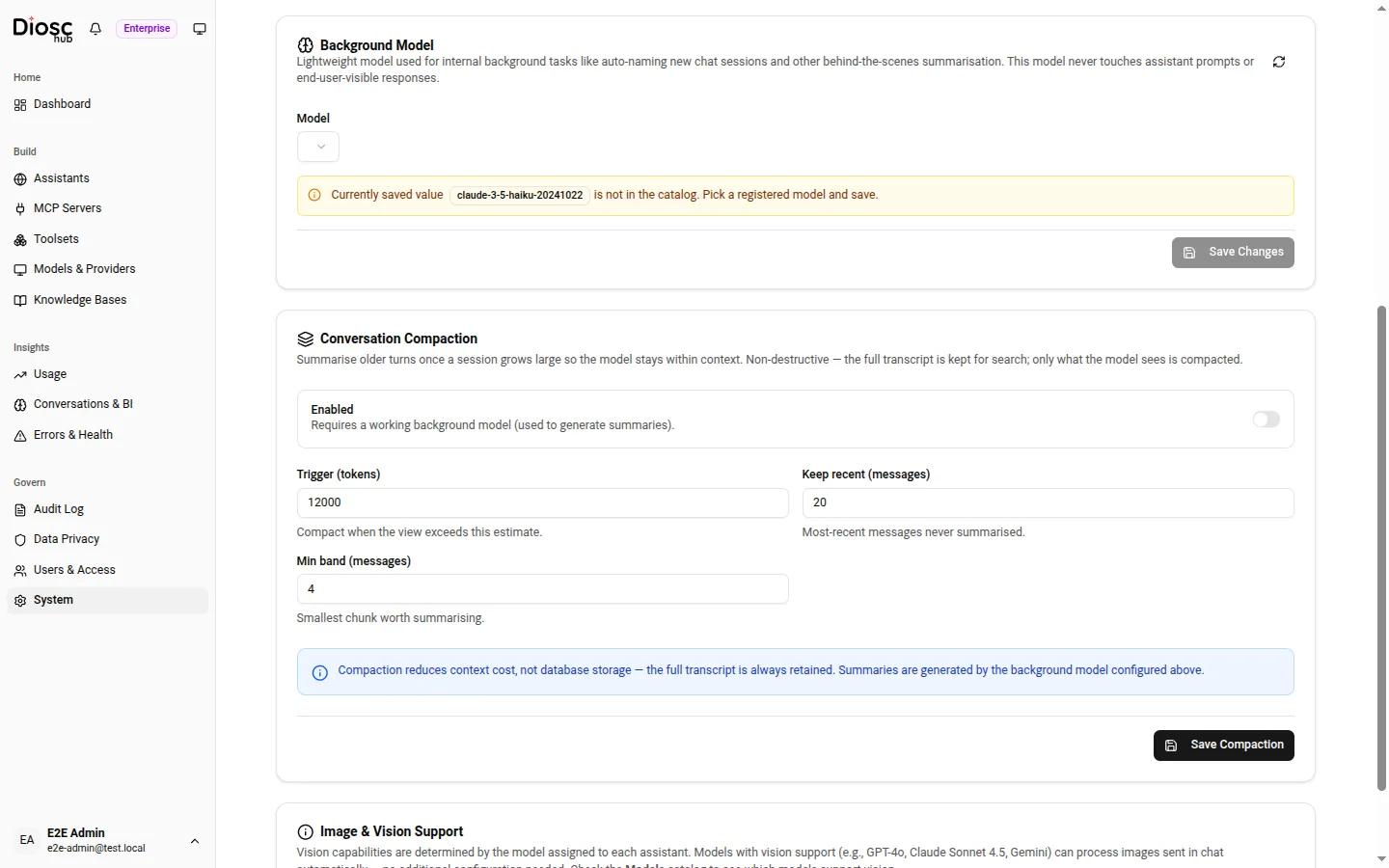
The General tab has four cards: License, Background Model, Conversation Compaction, and Image & Vision Support. A card for problem reports sits beside them.
License
Section titled “License”The License card reports the license DioscHub is running under. It shows the Tier (Free, Pro, or Enterprise), the Status (Valid, Grace Period, Expired, or Invalid), who it is Licensed to, the Expires date, and the timestamp it was Last validated. When a license is in its grace period it also shows Grace remaining in days; when it has degraded it shows which tier it degraded from. The card is read-only — it reflects the license, it does not edit it. What each tier unlocks is in Licensing & tiers.
Background model
Section titled “Background model”The Background Model is a lightweight model DioscHub uses for internal, behind-the-scenes work — auto-naming new chat sessions and generating summaries (including conversation compaction, below). It is deliberately separate from the model that runs conversations: it never touches an assistant’s prompt or any end-user-visible response. Pick a cheap, fast model here; the conversation model is set per Assistant in Models.
The selector lists the models in your catalog, grouped by provider; only available models appear. The default is claude-3-5-haiku-20241022. Choose a model and Save Changes. If the saved value is not in the catalog — for example after removing a provider — the card warns you and asks you to pick a registered model.
Conversation compaction
Section titled “Conversation compaction”Conversation Compaction summarizes older turns once a session grows large, so the running conversation stays inside the model’s context window. It is non-destructive: the full transcript is always kept in the database for search and export; compaction only changes what the model sees on the next turn. The summaries are generated by the background model above, so compaction needs a working background model to run.
Compaction is off by default. The controls:
| Field | What it controls |
|---|---|
| Enabled | Turns compaction on. Requires a working background model. |
| Trigger (tokens) | Compact once the model’s view exceeds this token estimate. Default 12000, minimum 256. |
| Keep recent (messages) | The most-recent messages that are never summarized. Default 20. |
| Min band (messages) | The smallest run of messages worth summarizing in one pass. Default 4. |
Save with Save Compaction. Min band should not exceed Keep recent.
Image & vision support
Section titled “Image & vision support”The Image & Vision Support card is informational — there is nothing to configure here. Whether an assistant can read images sent in chat is determined by the model assigned to that assistant: a model with native vision (for example GPT-4o, Claude Sonnet 4.5, or Gemini) processes images automatically, with no extra setting. Only files of kind image in PNG, JPEG, WebP or GIF are sent to the model (see File types); images in a knowledge base are stored but not indexed for search. Check which models support vision in the Models catalog.
Problem reports
Section titled “Problem reports”The Problem reports on by default card sets the deployment default for problem
reports: whether an assistant that has made no choice of its own offers them. New
assistants, and assistants whose own setting is Use default (stored as null), follow it. Turning the default
off does not change an assistant that was set explicitly; an assistant’s own setting is on its Setup
tab. Reports are offered only where the license has problemReports
as well. Without it the card is shown dimmed and read-only, with an “Available in Pro” pill. The card needs settings:manage.
| Setting | API field | Env var | Default |
|---|---|---|---|
| Problem reports on by default | problemReports.defaultEnabled (boolean) in PUT /api/admin/system-settings | PROBLEM_REPORTS_DEFAULT | On |
PROBLEM_REPORTS_DEFAULT=off (also false or 0, any case) seeds the default as off; unset, empty or any
other value leaves it on. Use it when you upgrade a deployment that must not start offering reports to its users
until you have decided: every assistant without an explicit setting stays off until an admin turns it on. A value
saved on this card overrides the env var, and a stored value that is not a boolean reads as off.
The rollout notice
Section titled “The rollout notice”When the license has problemReports, at least one assistant has reports on, and nobody has acknowledged it yet,
admins who can read assistants see a one-time banner: Problem reports are on for N assistants. Nothing is sent
until you add a sink. It offers:
- Review settings: acknowledges the banner and opens the assistants list.
- Turn off for all assistants (needs
assistants:write): sets every assistant’s own setting to off, turns the deployment default off so new assistants start off, and acknowledges the banner. The action is audited (problem_reports.disabled_for_all). - Dismiss: acknowledges the banner.
The acknowledgement is stored on the hub and is the same for every admin, so the banner shows once. Acknowledging is
also audited (problem_reports.rollout_acknowledged). It does not change any setting. For what to tell your
users, see the privacy-notice wording in Data
handling.
File uploads
Section titled “File uploads”The File uploads card is on the Rate Limits tab. It holds the deployment-wide defaults for chat files; a Role can override each one. What each control does, where it is enforced and what a refusal looks like is in File storage limits, quota & retention. The card also holds the Knowledge-base storage limit: one cap over all knowledge bases together (files, extracted text and search index), which no Role overrides. See Knowledge bases.
| Field | API field (files.…) | Default | Bounds |
|---|---|---|---|
| Upload limit (MB) | uploadMaxBytes (bytes) | 100 MB | 1 MB to 1024 MB (1 GiB, fixed ceiling) |
| File retention (days) | retentionDays | empty — off | 1 to 3650 days |
| Storage quota (MB) | quotaBytes (bytes) | empty — no quota | 1 MB to 1,048,576 MB (1 TiB) |
| File count limit | quotaFiles | empty — no limit | 1 to 1,000,000 |
| Knowledge-base storage limit (MB) | knowledgeStorageLimitBytes (bytes) | empty — off | 1 MB to 1,048,576 MB (1 TiB) |
Leave a field empty to use its default; the card sends null, which clears the stored value. The card
shows MB and sends bytes (1 MB = 1,048,576 bytes). Save with Save. Over the admin API, these are the
files section of PUT /api/admin/system-settings, and a value outside its bounds is rejected with
400. Changes apply to the next upload; no restart is needed. Retention applies to files uploaded after
you set it.
Export and import. The files section travels with the system settings in a configuration
transfer. On import each value is clamped rather than trusted: an
out-of-range value is moved to the nearest bound (an upload limit of 5 GB imports as 1024 MB), and a
value that is not a number — or a negative upload limit — is dropped, so the default applies (100 MB, no
quota, retention off, no knowledge-base storage limit). Keys the section doesn’t define are dropped. The
hub applies the same bounds again whenever it reads the settings, so a value written to the database by
hand can’t take effect outside them either. The file type rules travel in the same
section, as files.typeRules.
File types
Section titled “File types”The File types tab holds the deployment’s file type rules: exact extensions or MIME types mapped to a
kind, a parser from a fixed set and an optional hint, next to the read-only built-in types and a Test a
file tool. The tab shows only with the file-types:read permission (Viewer and up); saving rules and
testing a file need file-types:manage (Admin and Owner). Both permissions are on every tier. What the
kinds, formats, rules and parser limits are is in File types, kinds & parser
limits.
| Setting | Stored as | Default | Bounds |
|---|---|---|---|
| File type rules | files.typeRules | none | At most 200 rules; hint at most 500 characters |
The rules are not part of GET or PUT /api/admin/system-settings: a files.typeRules key sent to the
settings PUT is ignored and leaves the saved rules as they are. They are read with
GET /api/admin/file-types and replaced, validated as a whole, with PUT /api/admin/file-types/rules. A
change applies to the next upload without a restart; in a cluster the other instances reload the rules
when the change is saved. Files already stored keep their kind until they are re-indexed (see
Re-classify stored files).
On import, the rules are checked by the same validator as the rules API. Invalid rules, or two rules with
the same key, are a warning at analyze and stop the System Settings item at apply. An export with no
typeRules (one made before rules existed) keeps the target’s saved rules.
Other System tabs
Section titled “Other System tabs”The System screen has more tabs, each documented separately:
- Rate Limits — request, connection, and token-budget defaults for the deployment, plus the File uploads card above. See Rate limiting & cost controls.
- Cluster — multi-instance topology and the shared Redis backplane. See Deployment topologies.
- Config Transfer — export and import a deployment’s configuration. See Config transfer.
- Files — counts of chat and knowledge-base files by indexing status, and a bulk Re-index, which can filter by kind, extension and MIME type and re-classifies the files it re-indexes. See Chat files & indexing and Re-classify stored files.
- File types — the file type rules above. See File types, kinds & parser limits.