

Assistants & Roles
An Assistant is the chat your users talk to. It carries the name and greeting they see, the system prompt that shapes its behavior, the model that runs the conversation, and the set of MCP servers it is allowed to reach. A Role then narrows that down per user: which of those tools a given user may call, which knowledge they can search, and which UI features they get.
One Assistant has many Roles. The Assistant is the conversation; the Role is what that conversation is allowed to do for the specific person in it.
Create an Assistant
Section titled “Create an Assistant”Create an Assistant in the admin portal (or over the admin API at POST /admin/assistants). The fields
that shape it:
| Field | What it does |
|---|---|
name, greeting | The identity and opening line the user sees. |
systemPrompt | The base instructions given to the model on every turn — the assistant’s standing brief. |
llmConfig | Which model runs the conversation, and how it reasons, and optionally up to two fallback models. See Models. |
attachedMcpServers | The MCP servers this Assistant may reach — the outer boundary on its tools (below). |
defaultRole | The Role applied to a user who matches no other Role. |
anonymousMode | Whether visitors may chat before signing in. See Anonymous sessions. |
Attaching your MCP servers to the Assistant is what makes their tools available at all. attachedMcpServers
is the envelope: no Role can call a tool from a server that is not attached here, whatever else it is
granted. Attach the servers whose tools this Assistant should ever be able to use, then use Roles to scope
down from there.
Fall back to another model
Section titled “Fall back to another model”On the Assistant’s Setup tab, the Fallback models section sits next to the model picker. Add up to
two models; they are tried in the order shown, and Move up / Move down reorder them. They are saved
with the rest of the Setup form as llmConfig.fallbackModels. The picker offers only models that are active,
available, not already the primary or chosen, and that support the tool_use and vision the primary
supports. If you change the primary to a model that makes a chosen fallback unusable, the entry is flagged
and Save is refused until you remove it.
On a deployment that can hold only one active model (the Free tier) the section reads “Fallback needs a second active model (Pro)”. With routing on, it notes that routing’s own fallback order is used instead. What triggers a fallback, and what it costs against your tier, is on Models.
Add Roles to scope tools per user
Section titled “Add Roles to scope tools per user”A Role decides what a matched user’s conversation can do. Create Roles under an Assistant (POST /admin/assistants/:assistantId/roles). A Role carries:
promptInstructions— extra instructions appended to the Assistant’s system prompt for this Role, so one Assistant can brief a support agent differently from an end customer.- Tool scope — either
allowAllTools, which grants every tool from the attached servers, or an explicitallowedToolNameslist. WhenallowAllToolsis false, only the tools you name here are callable. features— which widget capabilities this Role’s users get (session history, file upload, and so on).suggestionsand a per-user token budget, if you set one.- File limits — an upload size limit, a storage quota and a file retention that override the system defaults for this Role’s users (below).
Tool scope is enforced in two stages, both of which must pass: the tool’s server must be in the Assistant’s
attachedMcpServers, and the Role must allow the tool. allowAllTools: true therefore means “every
tool from the attached servers” — never every tool in DioscHub.
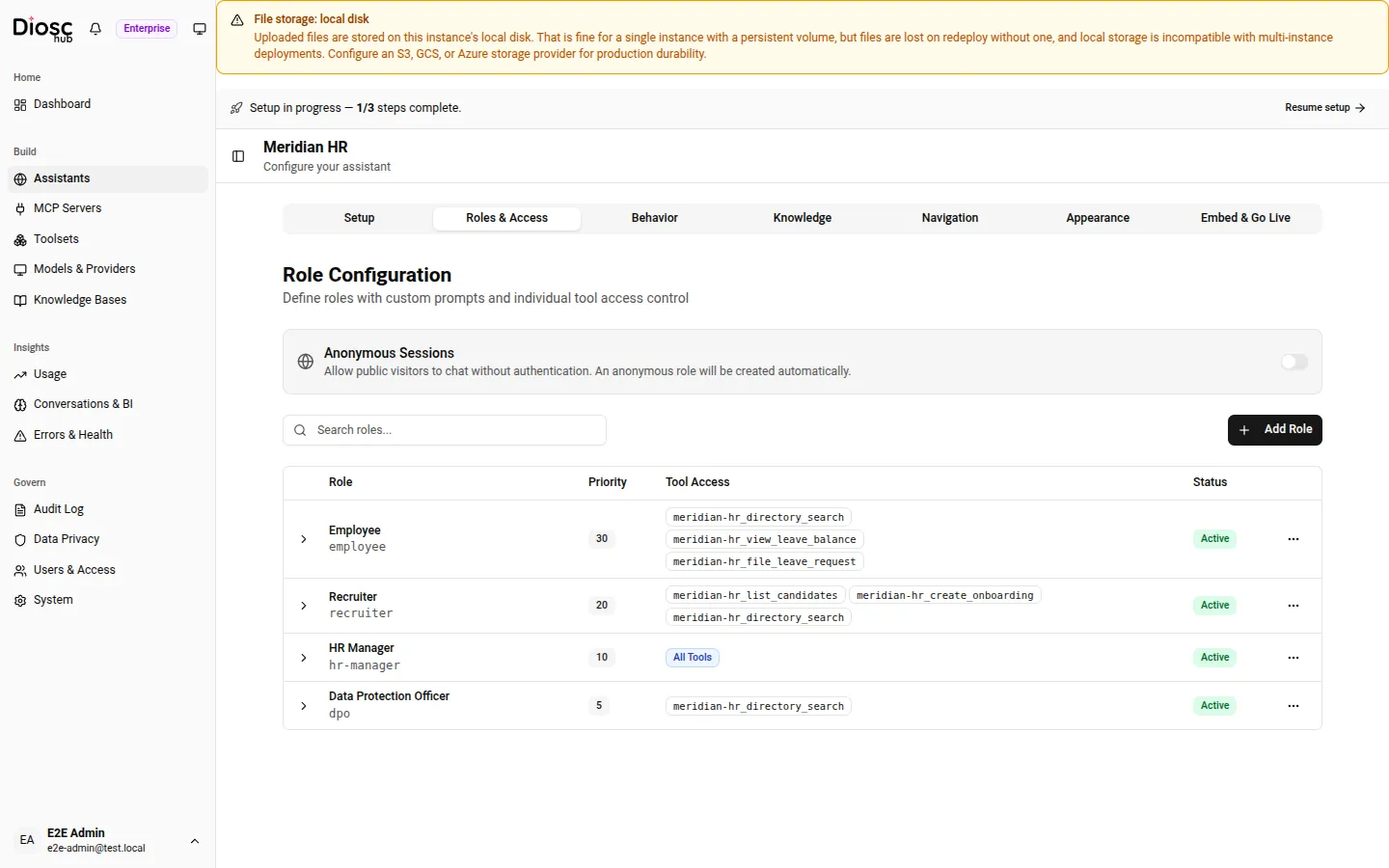
The Roles & Access tab. The Tool Access column is the scope at a glance — “All Tools” for the HR Manager, an explicit allow-list for the narrower roles.
How a user gets a Role
Section titled “How a user gets a Role”DioscHub does not authenticate the user or store their credentials on the Role. Instead, when your backend
binds the session, the identity it asserts carries the user’s role names.
DioscHub matches those against the Assistant’s configured Roles and applies the matching one for the
session; a user who matches none gets the defaultRole. The user’s auth artifacts stay bound to the
Session and are forwarded to your tools — they are never a property of the
Role.
This is the division to keep in mind: the Role supplies the capability (which tools, which knowledge, which features), and the bind supplies the identity (who this is, and which Role they match).
File limits per role
Section titled “File limits per role”The system sets one upload limit, storage quota and file retention for the whole deployment (System → Rate Limits → File uploads, see System settings). A Role can override each of them for its users, in the Budget section of the role dialog:
| Field in the dialog | Role field (admin API) | Range | Empty / null |
|---|---|---|---|
| Upload limit (MB) | uploadMaxBytes (bytes) | 1 MB to 1024 MB | Inherits the system limit |
| Storage quota (MB) | storageQuotaBytes (bytes) | 1 MB to 1,048,576 MB (1 TiB) | Inherits the system quota |
| File count limit | storageQuotaFiles | 1 to 1,000,000 | Inherits the system limit |
| File retention (days) | fileRetentionDays | 0 to 3650; 0 = this Role’s files never expire | Inherits the system retention |
- A value set on the Role wins whether it is higher or lower than the system’s. Each field inherits on its own, so a Role can set only a byte quota and keep the system’s file count.
- The Role used is the one DioscHub resolved for the user when the session was bound (for MCP
put_fileand the file tools, the session’s resolved Role). Nothing the browser or a tool sends can pick another. A user whose Role is missing or inactive gets the system values. - A change applies to the next upload. Retention applies to files written after you set it.
- The admin API rejects a value outside its range with
400. The four fields travel with the Assistant in a configuration transfer; on import a value is clamped to its range, and anything that is not a usable number imports asnull(inherit). - The knowledge base always uses the system upload limit; a Role override doesn’t apply to knowledge-base uploads.
What each control means, where it is enforced and what users see is in File storage limits, quota & retention.
The anonymous Role has two more file settings, in its Anonymous section: Max files per session
and Max MB per session, the caps on what one anonymous visitor’s session may upload when the Role’s
Files feature is on. See Anonymous file upload.
Problem reports
Section titled “Problem reports”An Assistant can offer its users problem reports: after a server-side failure of one of
your tools, or when a user types /problem, the user reviews a draft and decides whether it is stored. It is a
Pro feature, switched per Assistant, not per Role: every Role of an Assistant that has it on gets the offer.
| Field | What it does |
|---|---|
problemReportsEnabled | true or false is the Assistant’s own choice. null (the default for a new Assistant) follows the deployment default, which is on unless it was turned off. |
problemReportsEffective | Read only: what the choice and the default come to now. |
In the admin portal the Problem reports card sits on the Assistant’s Setup settings tab. The switch shows the effective value and saves at once; Use default returns the Assistant to the deployment default. Without a Pro license the switch is disabled and carries a PRO pill.
The tool is offered only when the license has problemReports and the Assistant’s effective setting is on;
the composer’s /problem command follows the same rule. Turning it off, or losing the license, ends offers at the
next turn. Reports already stored stay on the Problems page. The setting is carried by
configuration transfer.
Two admin permissions cover the reports themselves; the built-in admin roles hold them as follows.
| Permission | Viewer | Operator | Admin | Owner |
|---|---|---|---|---|
problems:read (the Problems page and API) | yes | yes | yes | yes |
problems:manage (change a status; webhook sinks) | yes | yes | yes |
Custom roles can be given either permission once the license has problemReports. The Data Protection Officer
role holds neither: export, erasure and retention of stored reports never depend on them.
Usage questions
Section titled “Usage questions”Every Assistant can answer questions about the user’s own quota. It does so through the usage built-in
Toolset, which holds one tool, get_my_usage. The Toolset is pinned, so the tool is always in front of the
model when it is offered. The tool is read-only, takes no arguments and needs no approval. It works on every
tier: there is no licence feature and no setting to switch it on.
| Situation | Tool |
|---|---|
| A token budget resolves for the user’s session (from the Role, the Assistant or the platform default) | Offered |
| The budget is unlimited | Offered; the assistant answers that no limit applies |
| No budget resolves for the session | Withheld |
An MCP tool resolves to the name get_my_usage | Withheld; the MCP tool keeps the name |
The check runs on every turn, so a Role or budget change applies on the next message.
The tool returns used, limit, remaining, percent used, reset time, window type, where the limit comes from (Role, Assistant or platform default) and how full the context is. It returns numbers and labels only, never an identity or an auth header. The full list of fields, the status block the assistant gets near 80% and 95%, and the edge cases are in Rate limiting. Budgets themselves are set on the Role and the Assistant, see Where budgets are set.
Activate and deactivate
Section titled “Activate and deactivate”An Assistant and each Role have an active flag. Deactivating an Assistant takes it offline without deleting
its configuration; deactivating a Role removes it from resolution so its users fall through to the
defaultRole. Use these to stage changes without tearing anything down.
Next: MCP servers & Toolsets.