
Usage & Billing

Monitor token usage and costs across your Diosc deployment.

Usage Dashboard

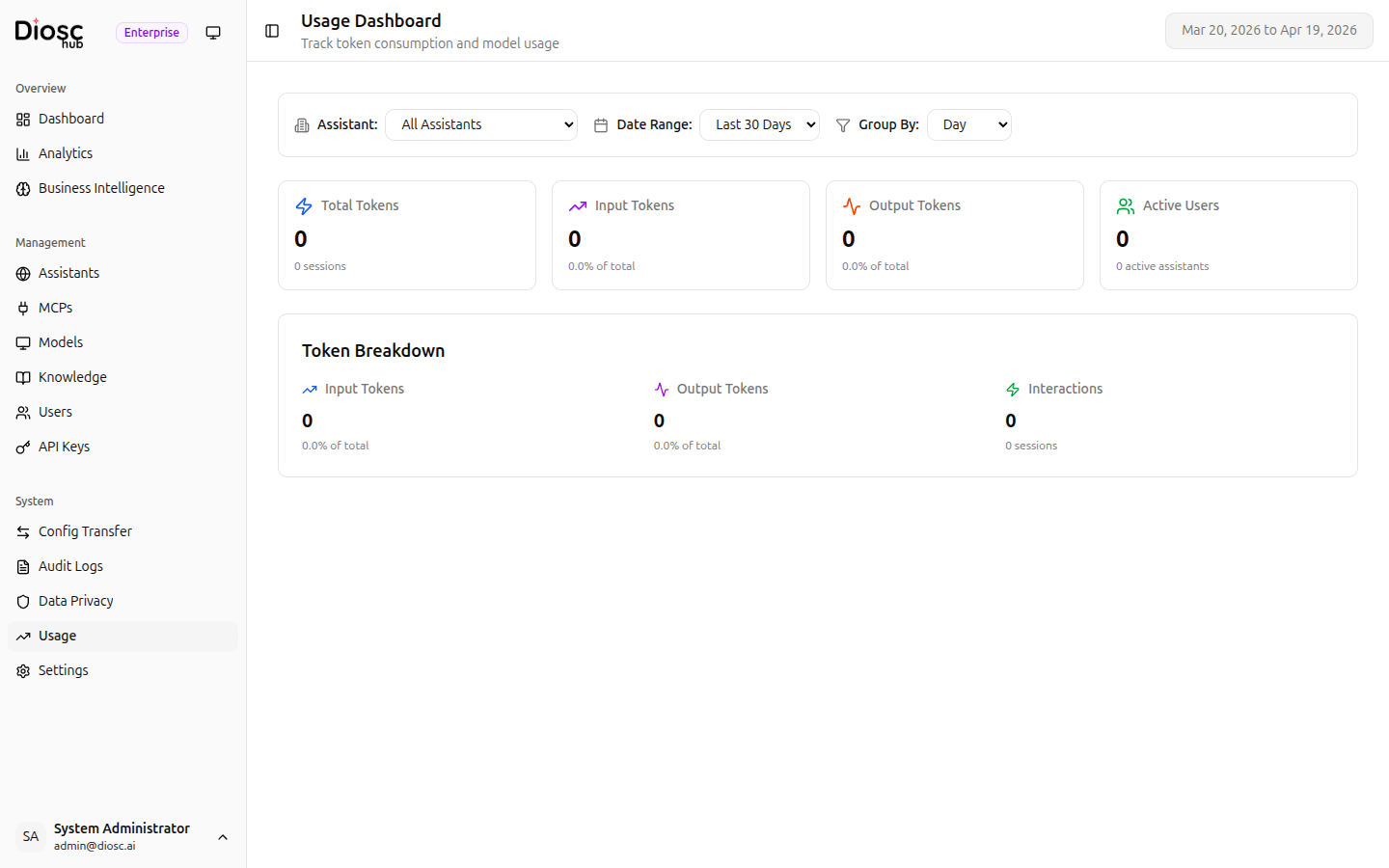
Navigate to Usage in the sidebar to open the usage dashboard.
Usage Dashboard

Overview Metrics

The top of the page shows four key metric cards:

MetricDescription
Total CostTotal cost in USD for the selected period
Avg Cost per SessionAverage cost per chat session
Input TokensTotal input tokens consumed (with percentage)
Output TokensTotal output tokens generated (with percentage)

Filtering

Use the filters at the top of the page to narrow the data:

Assistant Filter — Select a specific assistant or All Assistants to see aggregated data.

Date Range — Choose from preset date ranges:

OptionDescription
TodayCurrent day
YesterdayPrevious day
Last 7 DaysRolling 7-day window
Last 30 DaysRolling 30-day window (default)
This MonthCurrent calendar month
Last MonthPrevious calendar month

Charts & Visualizations

Cost Over Time

A line chart showing cost and total tokens over the selected period. This helps identify usage spikes and trends.

Cost Trend

Token Distribution

A bar chart showing the breakdown of input tokens vs. output tokens over time.

Token Usage

Cost by Model

A pie chart showing how costs are distributed across different LLM models. Hover over segments to see exact amounts.

Model Details Table

ColumnDescription
ModelLLM model name
CostTotal cost for this model
TokensTotal tokens consumed
PercentageShare of total usage
CallsNumber of interactions

Cost Breakdown

A detailed card showing:

  • Input costs — Cost of input tokens
  • Output costs — Cost of output tokens
  • Total interactions — Number of LLM calls
  • Total sessions — Number of chat sessions

Billing Dashboard

The Billing page provides a deeper breakdown of resource costs across all resource types.

Billing Dashboard

Summary Cards

CardDescription
Total CostTotal cost with interaction count
Cost by TypeBreakdown by LLM, Embedding, and Plugin with percentages
Avg Cost per SessionAverage session cost

Charts

  • Cost Trend — Line chart showing cost over time
  • Cost by Resource Type — Pie chart breaking down LLM, Embedding, and Plugin costs
  • Top Resources by Cost — Bar chart of the top 10 most expensive resources

Detailed Breakdown Table

ColumnDescription
ResourceResource name
TypeLLM, Embedding, or Plugin
QuantityUsage count
CostTotal cost
% of TotalPercentage of total spending

Filtering

  • Period — Today, Yesterday, Last 7 Days, Last 30 Days, This Month, Last Month
  • Resource Type — All, LLM, Embedding, Plugin

Resource Pricing Configuration

DioscHub tracks costs for three resource types — LLM, Embedding, and Plugin — each with configurable pricing.

Pricing Models

ModelDescriptionExample
TieredVolume-based pricing with tiers (default)First 1M tokens free, then $3/M tokens
FlatSingle rate per unit$0.003 per 1M tokens
SubscriptionFixed cost per billing period$100/month flat

Default Model Pricing

DioscHub ships with default pricing for common models. These can be customized in Global Settings > Resource Pricing:

ModelInput ($/M tokens)Output ($/M tokens)
Claude Sonnet 4$3.00$15.00
Claude Opus 4$15.00$75.00
Claude Haiku 3.5$0.80$4.00
GPT-4o$2.50$10.00
GPT-4o Mini$0.15$0.60

Configuring Custom Pricing

Navigate to Global Settings > Resource Pricing or use the API:

POST /api/admin/resource-config
Authorization: Bearer {token}

{
"resourceType": "llm",
"resourceId": "anthropic:claude-sonnet-4-20250514",
"displayName": "Claude Sonnet 4",
"unitType": "token",
"hasInputOutput": true,
"pricingMechanism": "tiered",
"pricingTiers": [
{ "upTo": 1000000, "pricePerUnit": 0 },
{ "upTo": null, "pricePerUnit": 3.0 }
],
"outputPricingTiers": [
{ "upTo": 1000000, "pricePerUnit": 0 },
{ "upTo": null, "pricePerUnit": 15.0 }
],
"resetPolicy": "monthly",
"resetDayOfMonth": 1
}

Prices are per million units. A tier with "upTo": null covers all remaining usage.

Seeding Defaults

To populate pricing for all standard models at once:

POST /api/admin/resource-config/seed-defaults
Authorization: Bearer {token}

Quota Management

Set soft and hard usage limits per resource to control spending.

Soft Limits (Warnings)

Soft limits send alerts when usage approaches a threshold. They do not block usage:

{
"softLimitQuantity": 10000000,
"softLimitCostUsd": 50.00,
"alertWebhookUrl": "https://your-system.com/alerts",
"alertEmails": ["billing@company.com"]
}

When a soft limit is reached, DioscHub sends a webhook notification and logs an alert.

Hard Limits (Blocking)

Hard limits block further usage when the threshold is reached. The API returns 429 Too Many Requests:

{
"hardLimitQuantity": 50000000,
"hardLimitCostUsd": 200.00
}
caution

Hard limits block AI tool execution. Set them carefully to avoid disrupting production workflows.

Billing Periods

Quotas reset automatically based on the configured policy:

Reset PolicyDescription
NoneNever resets (cumulative)
DailyResets every day at the configured hour
WeeklyResets on the configured day and hour
MonthlyResets on the configured day of month
YearlyResets on January 1st

Checking Quota Status

GET /api/admin/resource-usage/llm/anthropic:claude-sonnet-4-20250514/quota
Authorization: Bearer {token}

Response:

{
"resourceType": "llm",
"resourceId": "anthropic:claude-sonnet-4-20250514",
"currentQuantity": 7500000,
"currentCost": 22.50,
"softLimitQuantity": 10000000,
"softLimitCost": 50.00,
"hardLimitQuantity": 50000000,
"hardLimitCost": 200.00,
"percentUsed": 15,
"isAtSoftLimit": false,
"isAtHardLimit": false,
"billingPeriodStart": "2026-02-01T00:00:00Z",
"billingPeriodEnd": "2026-03-01T00:00:00Z"
}

Exporting Usage Data

note

Usage export requires the Enterprise tier.

Export usage data as CSV or PDF for compliance, accounting, or internal reporting:

GET /api/admin/resource-usage/export?format=csv&startDate=2026-01-01&endDate=2026-01-31
Authorization: Bearer {token}

Supported formats:

  • CSV — Summary by resource type + detailed line items
  • PDF — Formatted report with charts and top resources breakdown

Query parameters:

ParameterDescription
formatcsv or pdf
assistantIdFilter by assistant (optional)
resourceTypeFilter by llm, embedding, or plugin (optional)
startDateStart of period (ISO 8601)
endDateEnd of period (ISO 8601)

Best Practices

Monitor Regularly

  • Check the dashboard periodically to spot unusual patterns
  • Compare usage across assistants to identify optimization opportunities
  • Watch for cost spikes that may indicate issues

Optimize Costs

  • Use Budget-tier models for simple, high-volume tasks
  • Use Premium models only where complex reasoning is needed
  • Review the Model Details table to identify cost-heavy models
  • Check the Cost by Model chart to see if cheaper models could handle the workload

Set Appropriate Quotas

  • Start with soft limits to understand usage patterns before enforcing hard limits
  • Set soft limits at 80% of your budget to get early warnings
  • Use per-model hard limits to prevent runaway costs on expensive models
  • Review quota alerts regularly and adjust limits as usage patterns stabilize

Track Per-Assistant

  • Use the assistant filter to compare costs between assistants
  • Identify which assistants consume the most resources
  • Adjust model selection per assistant based on complexity needs

Next Steps