Business Intelligence
The Business Intelligence (BI) module provides conversation analytics, topic classification, and knowledge gap detection to help you understand how users interact with your assistants.
Overview
Access Business Intelligence from the sidebar under Insights > Business Intelligence.
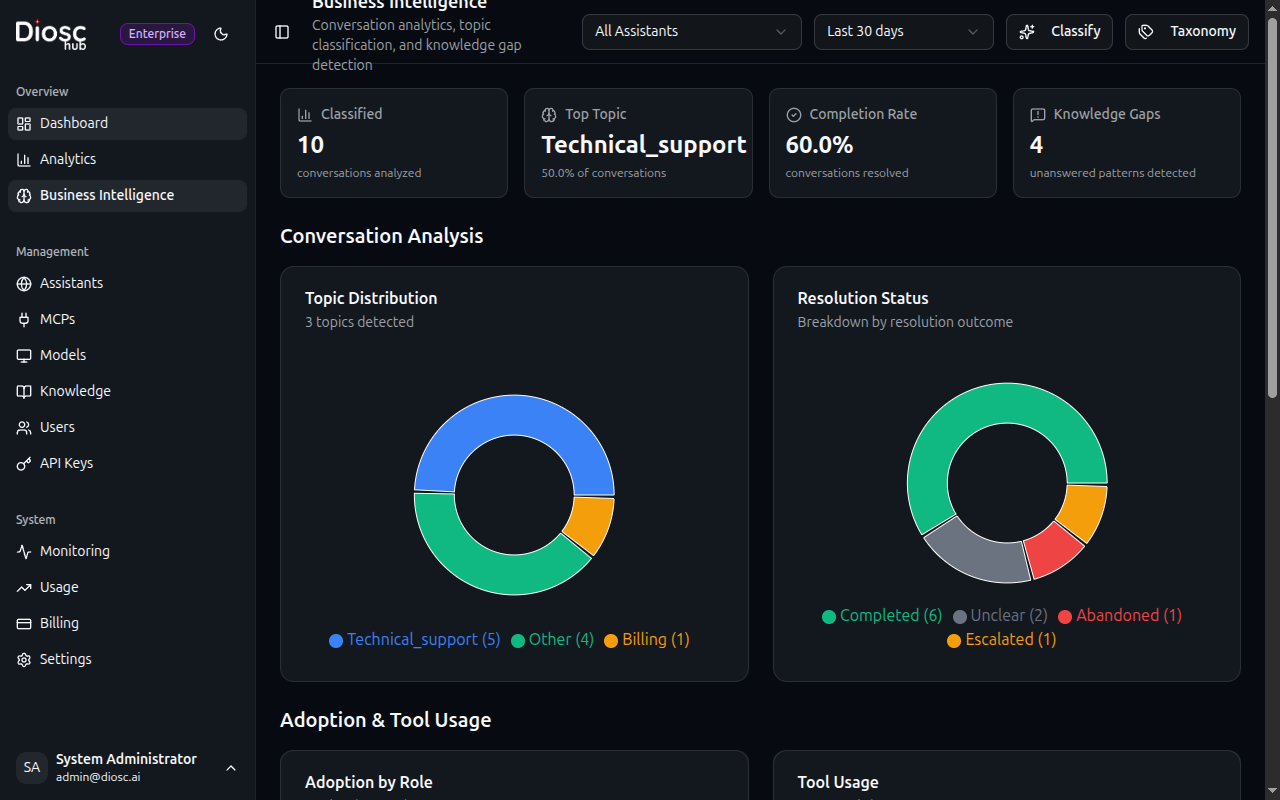
Key Metrics
The BI dashboard displays four key metrics:
| Metric | Description |
|---|---|
| Classified | Total conversations that have been analyzed and categorized |
| Top Topic | The most common conversation topic across your assistants |
| Completion Rate | Percentage of conversations that reached a resolution |
| Knowledge Gaps | Number of unanswered patterns detected |
Conversation Analysis
Topic Distribution
The Topic Distribution chart shows how conversations are categorized across your defined taxonomy. This helps identify:
- Which topics users ask about most frequently
- Emerging conversation patterns
- Areas that may need more documentation or training
Resolution Status
The Resolution Status chart breaks down conversations by outcome:
- Completed — User's question was successfully answered
- Escalated — Conversation was escalated to a human or external system
- Unclear — Resolution status could not be determined
Adoption & Tool Usage
Adoption by Role
Track how different user roles interact with your assistants. This helps understand:
- Which roles are most active
- Role-specific usage patterns
- Adoption gaps that may need attention
Tool Usage
See which MCP tools are used most frequently. This provides insights into:
- Most valuable integrations
- Underutilized tools that may need promotion
- Tool performance and reliability
Knowledge Gaps
Knowledge gaps are questions or topics that your assistant struggles to answer. The BI module automatically detects patterns in unanswered questions and groups them for review.
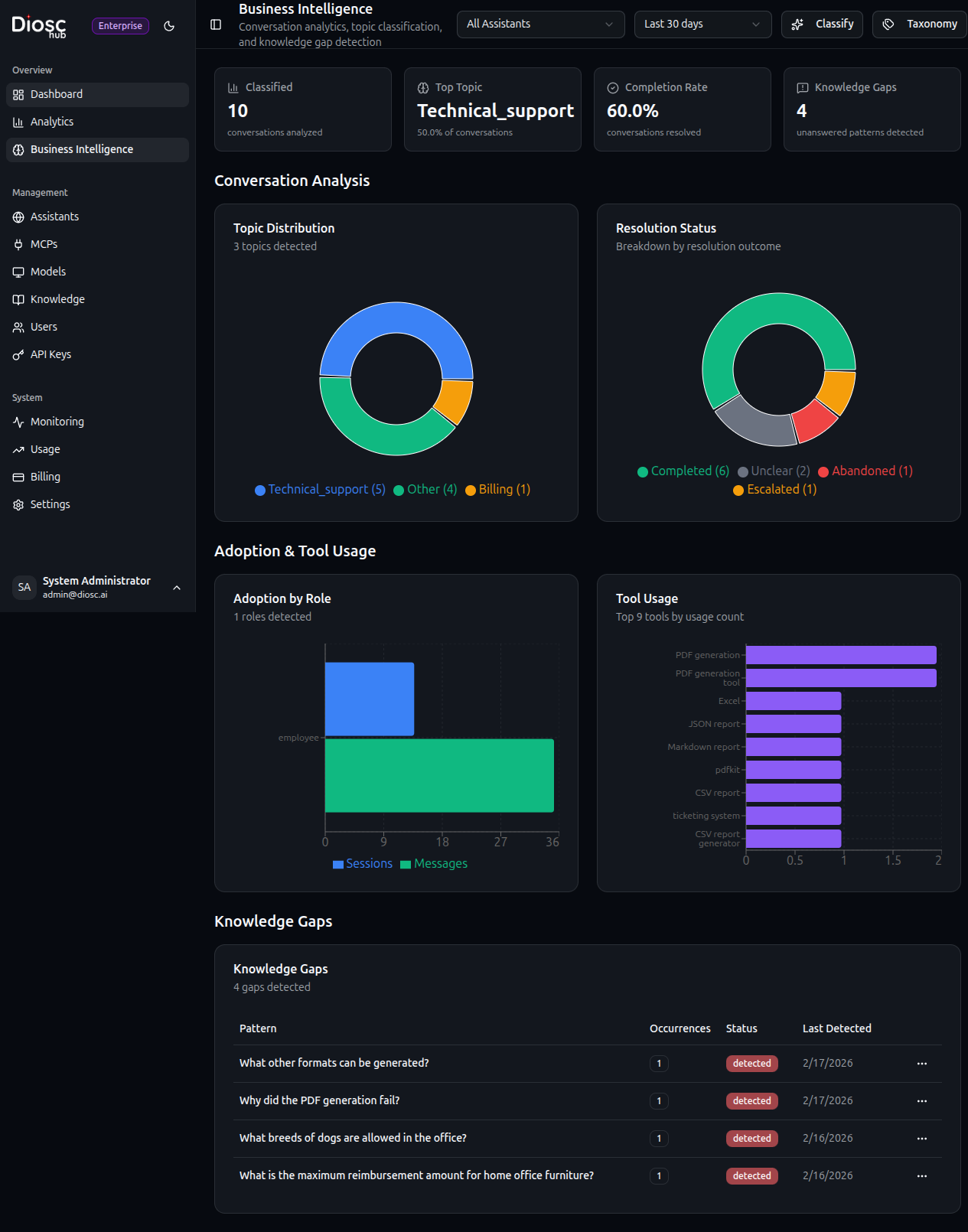
Using Knowledge Gaps
- Review detected gaps regularly
- Add relevant information to your knowledge base
- Update system prompts to handle common questions
- Consider adding new MCP tools for recurring needs
Taxonomy Management
Click the Taxonomy button to manage your topic taxonomy.
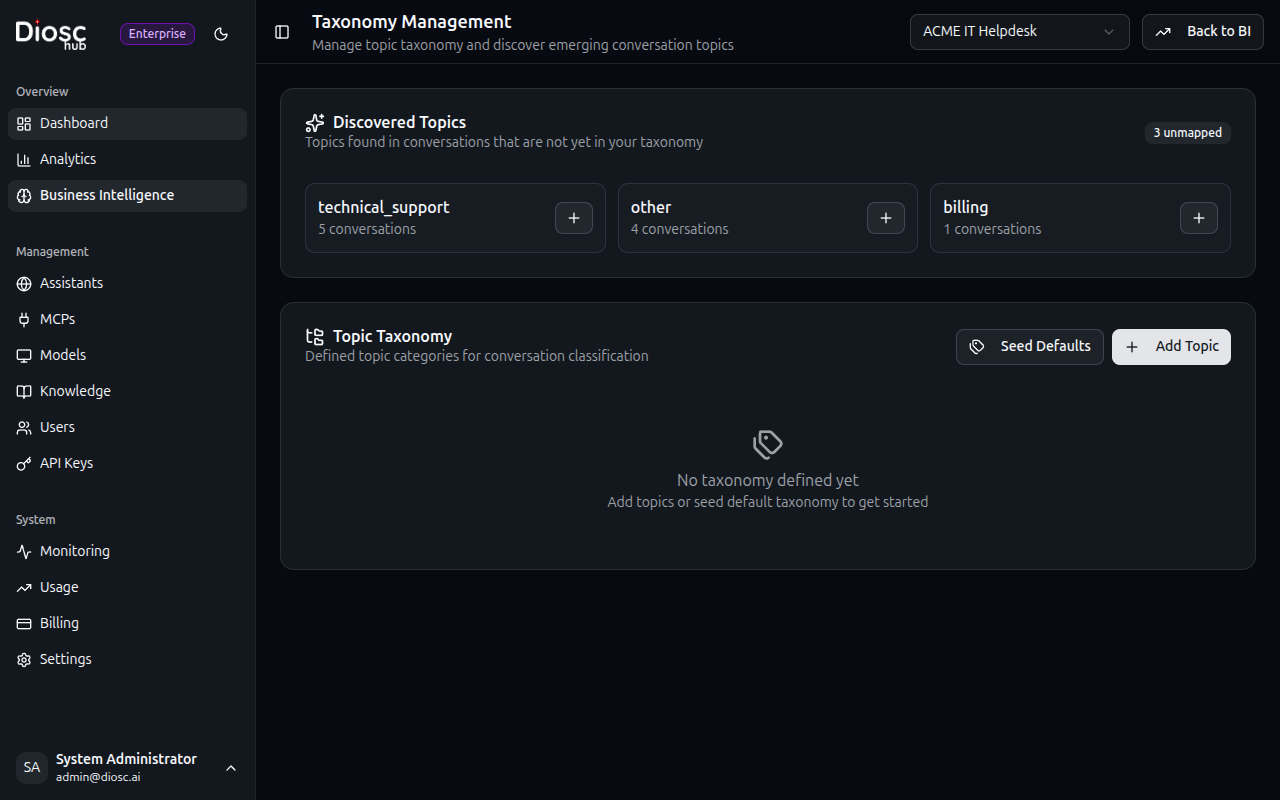
Discovered Topics
The top section shows topics found in conversations that aren't yet mapped to your taxonomy. When all topics are mapped, you'll see a green checkmark.
Topic Taxonomy
Define categories for conversation classification:
| Field | Description |
|---|---|
| Name | Internal identifier (e.g., technical_support) |
| Display Name | Human-readable name (e.g., "Technical Support") |
| Keywords | Terms that help classify conversations into this topic |
| Conversations | Number of conversations classified under this topic |
Adding Topics
- Click + Add Topic
- Enter a unique name (lowercase, underscores for spaces)
- Provide a display name
- Add relevant keywords
- Save the topic
Best Practices
- Start with broad categories and refine over time
- Use specific keywords that distinguish topics
- Review discovered topics regularly to catch emerging patterns
- Delete or merge topics with low conversation counts
Filtering
Use the filters at the top of the BI dashboard to narrow your analysis:
- Assistant — Filter by specific assistant or view all
- Time Range — Select a date range (Last 7 days, 30 days, etc.)
Classification
How Classification Works
DioscHub uses an LLM to analyze each conversation session and extract:
- Topic category — Matched against your taxonomy (e.g., "technical_support", "billing")
- Intent type —
question,task_request,troubleshooting,information, orfeedback - Resolution status —
completed,escalated,abandoned, orunclear - Tools used — Which MCP tools were invoked during the conversation
- Confidence score — How confident the classifier is in its categorization (0.0 to 1.0)
- Knowledge gaps — Questions the assistant struggled to answer
Classification runs automatically on a schedule (default: daily at 2 AM). Only sessions that have not been classified yet are processed.
Running Classification Manually
Click the Classify button to trigger classification immediately instead of waiting for the scheduled run. This is useful when:
- You've just set up BI and want to see results immediately
- You've made taxonomy changes and want to reclassify
- You need up-to-date analytics for a report
You can also trigger classification via the API:
POST /api/admin/bi/classify?assistantId={assistantId}
Authorization: Bearer {token}
Check classification progress:
GET /api/admin/bi/classify/status
Response:
{
  "running": true,
  "lastRunAt": "2026-02-17T02:00:00Z",
  "sessionsProcessed": 45,
  "sessionsRemaining": 12
}
Knowledge Gap Detection
Knowledge gaps are patterns of questions where your assistant could not provide satisfactory answers. The BI module automatically detects these patterns using vector embeddings to group similar gaps together.
How It Works
- During classification, the LLM identifies questions the assistant struggled with
- Each gap pattern is converted to a vector embedding
- Similar gaps are grouped using cosine similarity (configurable threshold)
- Gap occurrence counts and affected sessions are tracked
Gap Lifecycle
| Status | Meaning |
|---|---|
| Detected | Pattern found — needs review |
| Acknowledged | Reviewed by admin — planned for resolution |
| Addressed | Knowledge base or prompt updated to handle this |
| Dismissed | Not actionable — false positive or out of scope |
Update gap status from the BI dashboard or via API:
PATCH /api/admin/bi/gaps/{gapId}
Authorization: Bearer {token}

{
  "status": "acknowledged"
}
Acting on Knowledge Gaps
When you see recurring gaps:
- Add to Knowledge Base — Upload documentation that answers the detected questions
- Update System Prompt — Add instructions for how the assistant should handle these topics
- Add MCP Tools — Connect APIs that can provide the missing information
- Refine Taxonomy — Add new topics to catch emerging patterns
Configuration
Classification Settings
Configure BI settings in Global Settings, or via the API:
GET /api/admin/bi/settings
PUT /api/admin/bi/settings
| Setting | Default | Description |
|---|---|---|
| Classification Enabled | true | Enable/disable automatic classification |
| Classification Model | claude-3-5-haiku-20241022 | LLM model used for classification |
| Classification Provider | anthropic | LLM provider |
| Classification Schedule | 0 2 * * * (2 AM daily) | Cron expression for scheduled runs |
| Batch Size | 10 | Sessions classified per run |
| Gap Detection Enabled | true | Enable/disable knowledge gap detection |
| Gap Similarity Threshold | 0.85 | Cosine similarity threshold for grouping gaps (0.0–1.0) |
| Embedding Model | text-embedding-3-small | Model used for gap embedding vectors |
Use a budget model (like Haiku) for classification to minimize costs. Classification is a structured extraction task that doesn't require a frontier model.
Taxonomy API
Manage taxonomy programmatically:
# Get taxonomy for an assistant
GET /api/admin/bi/taxonomy?assistantId={id}

# Add a topic
POST /api/admin/bi/taxonomy/item?assistantId={id}
{
  "displayName": "Returns & Refunds",
  "keywords": ["return", "refund", "exchange", "money back"]
}

# Seed default topics for a new assistant
POST /api/admin/bi/taxonomy/seed?assistantId={id}
Default topics when seeding: General, Technical Support, Feature Request, Billing, and Other.
Discovered Topics
The Discovered Topics section shows topics found in classified conversations that don't match any taxonomy entry. Use this to:
- Identify emerging conversation patterns your taxonomy doesn't cover
- Decide whether to add new taxonomy entries or refine existing ones
- Monitor how well your taxonomy captures real user interactions
Query discovered topics via API:
GET /api/admin/bi/topics/discovered?assistantId={id}
BI API Reference
All BI endpoints require the businessIntelligence feature (Pro tier or above) and bi:read permission.
| Method | Endpoint | Description |
|---|---|---|
GET | /admin/bi/topics | Topic distribution |
GET | /admin/bi/topics/timeline | Topic trends over time |
GET | /admin/bi/topics/discovered | Unmapped topics |
GET | /admin/bi/resolution | Resolution metrics |
GET | /admin/bi/resolution/timeline | Resolution trends over time |
GET | /admin/bi/adoption | Adoption by role |
GET | /admin/bi/tools | Tool usage insights |
GET | /admin/bi/gaps | Knowledge gaps list |
PATCH | /admin/bi/gaps/:id | Update gap status |
GET | /admin/bi/taxonomy | Get taxonomy |
PUT | /admin/bi/taxonomy | Update taxonomy |
POST | /admin/bi/taxonomy/item | Add taxonomy item |
POST | /admin/bi/taxonomy/seed | Seed default taxonomy |
DELETE | /admin/bi/taxonomy/:id | Delete taxonomy item |
POST | /admin/bi/classify | Trigger classification |
GET | /admin/bi/classify/status | Classification job status |
GET | /admin/bi/settings | Get BI settings |
PUT | /admin/bi/settings | Update BI settings |
Common query parameters for analytics endpoints:
| Parameter | Description |
|---|---|
assistantId | Filter by assistant (optional — omit for all) |
startDate | Start of period (ISO 8601) |
endDate | End of period (ISO 8601) |
granularity | Time bucket: day, week, or month (for timeline endpoints) |
Next Steps
- Dashboard — View deployment metrics
- Analytics — Explore detailed usage analytics
- Global Settings — Configure BI classification settings
- Knowledge Bases — Fill detected knowledge gaps