Knowledge
The Knowledge tab lets you link knowledge bases to this assistant. When linked, the AI automatically searches these knowledge bases during conversations to provide answers grounded in your organization's documents.
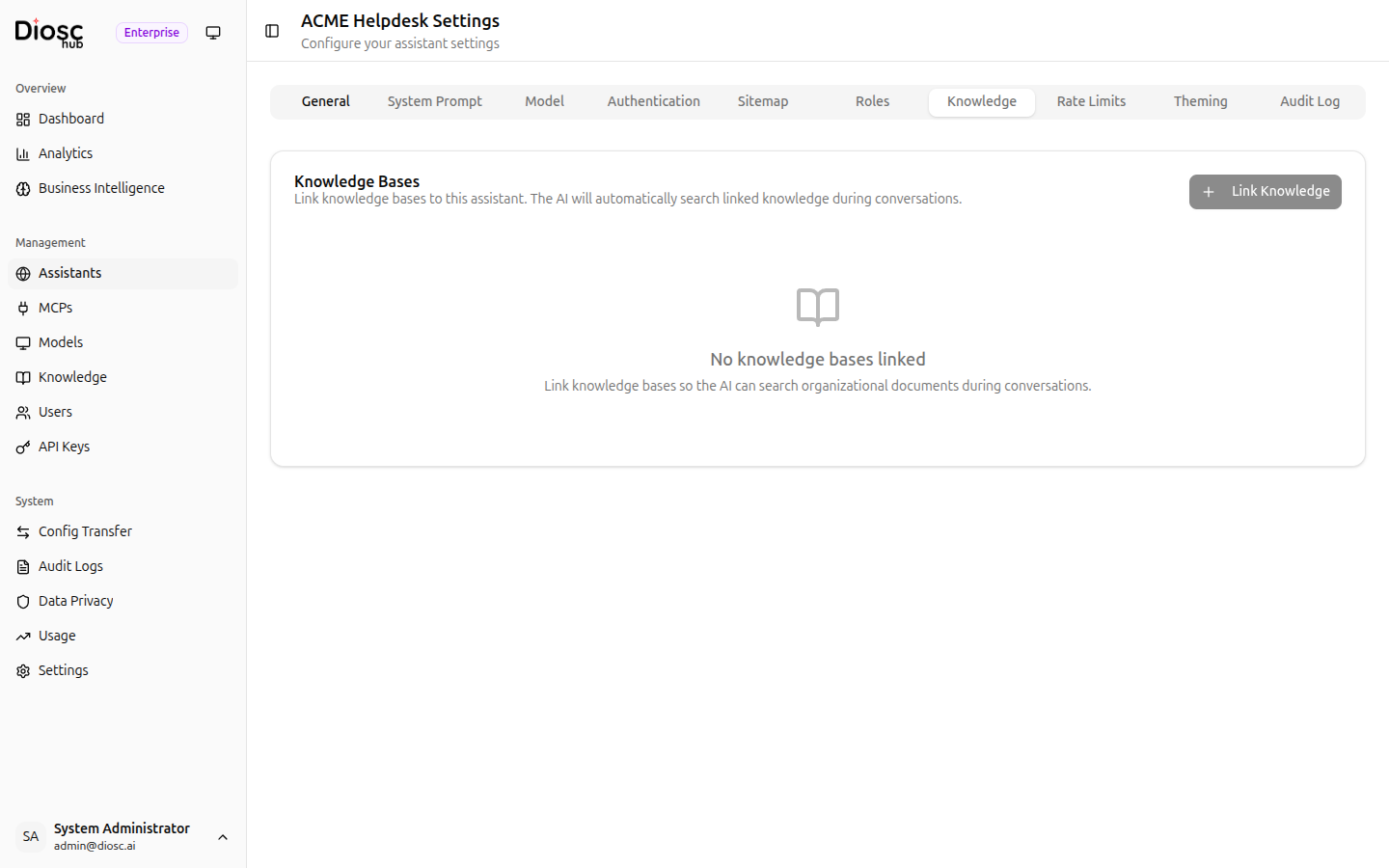
Linking a Knowledge Base
- Open the assistant's settings and select the Knowledge tab
- Click + Link Knowledge in the top-right corner
- Select one or more knowledge bases from the list
- Confirm the selection
Once linked, the knowledge base appears in the list on this tab.
Empty State
When no knowledge bases are linked, the tab displays:
No knowledge bases linked
Link knowledge bases so the AI can search organizational documents during conversations.
Click + Link Knowledge to get started.
How It Works
When a user asks a question, the AI searches all linked knowledge bases for relevant content. Matching documents are included in the AI's context, allowing it to provide answers based on your organization's information.
This is useful for:
- Company policies and handbooks
- Product documentation
- FAQ and support articles
- Technical reference material
Managing Linked Knowledge Bases
- To unlink a knowledge base, use the remove action next to it in the list
- To create a new knowledge base, go to Knowledge in the sidebar and add one there first, then return here to link it
Create and populate knowledge bases under Knowledge in the sidebar before linking them to an assistant. See the Knowledge section for details on creating and managing knowledge bases.
Next Steps
- Rate Limits -- Review usage limits for this assistant
- Theming -- Customize the chat widget appearance