Managing MCP Servers
MCP (Model Context Protocol) servers connect external systems to your assistants. They expose tools that the AI can use to interact with APIs, databases, and other services.
MCP Servers List
Navigate to MCPs in the sidebar to see all configured MCP server instances.
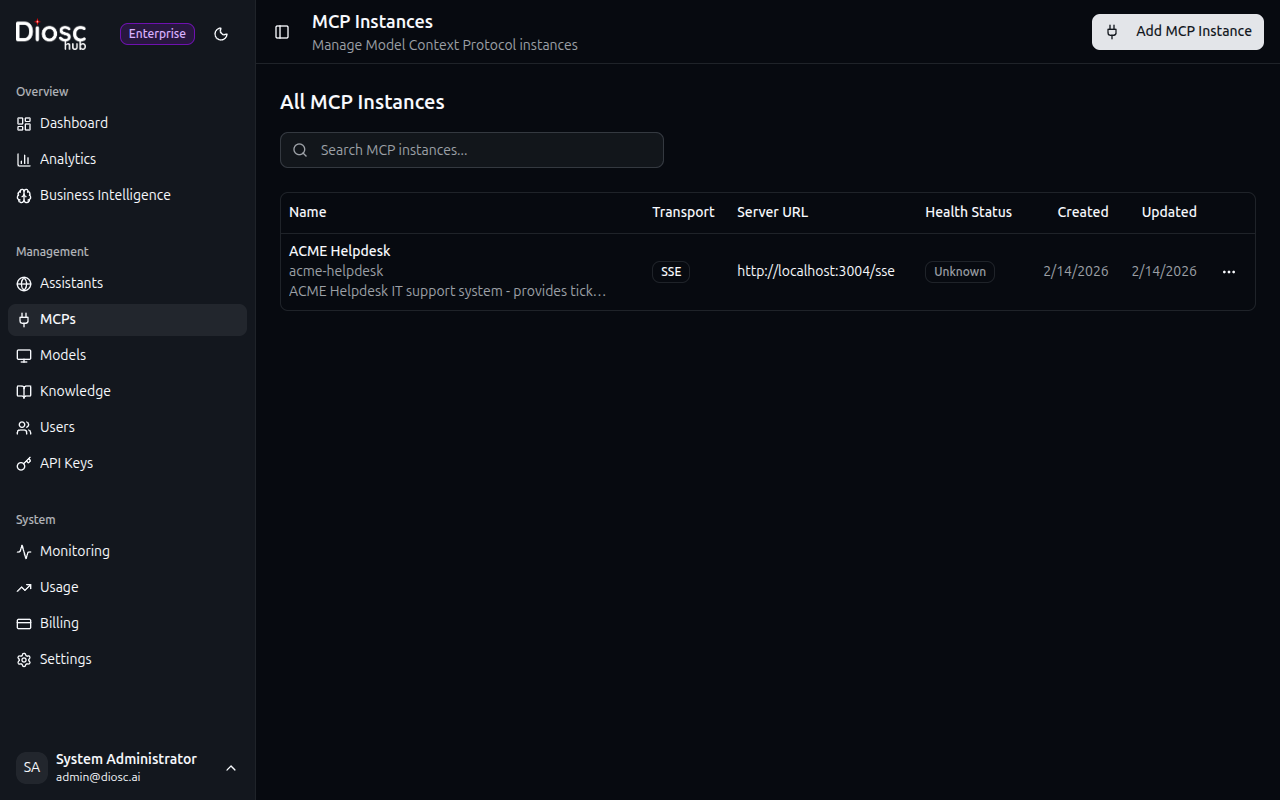
Each server shows:
- Name — Instance name and display name
- Status — Active/Inactive
- Health — Healthy, Degraded, or Down
- Tags — Labels for categorization
From the list you can:
- Search for servers by name
- Create a new MCP instance
- Open server Settings
- Test Connection to verify connectivity
- Refresh Client to re-establish the connection
- Delete a server
Adding an MCP Server
Click Create to connect a new MCP server.
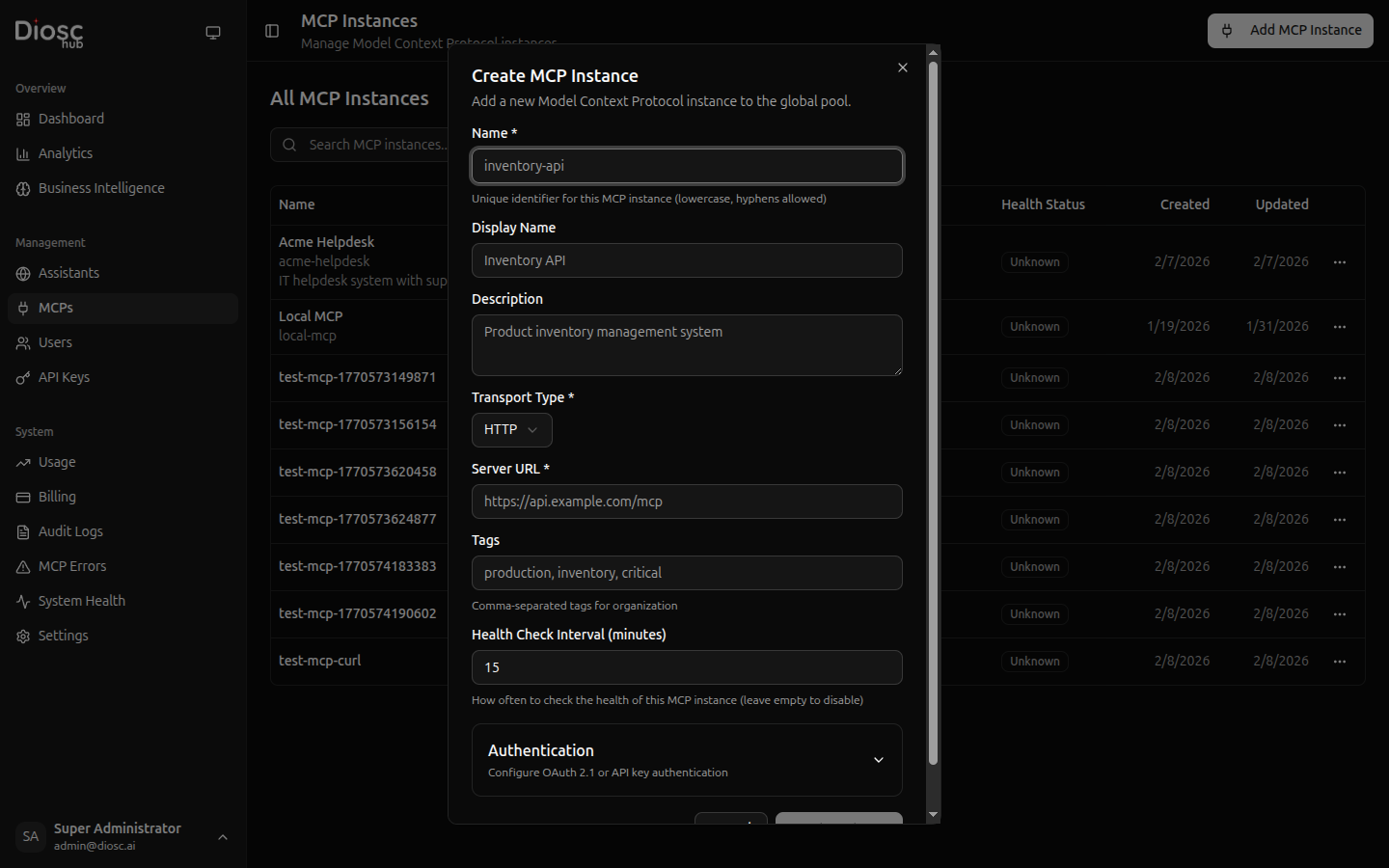
| Field | Description | Required |
|---|---|---|
| Instance Name | Unique identifier (used in tool prefixing) | Yes |
| Display Name | Human-readable name | Yes |
| URL | SSE endpoint URL (e.g., https://mcp.example.com/sse) | Yes |
Testing Connection
Click Test Connection from the actions dropdown on any server to verify it works.
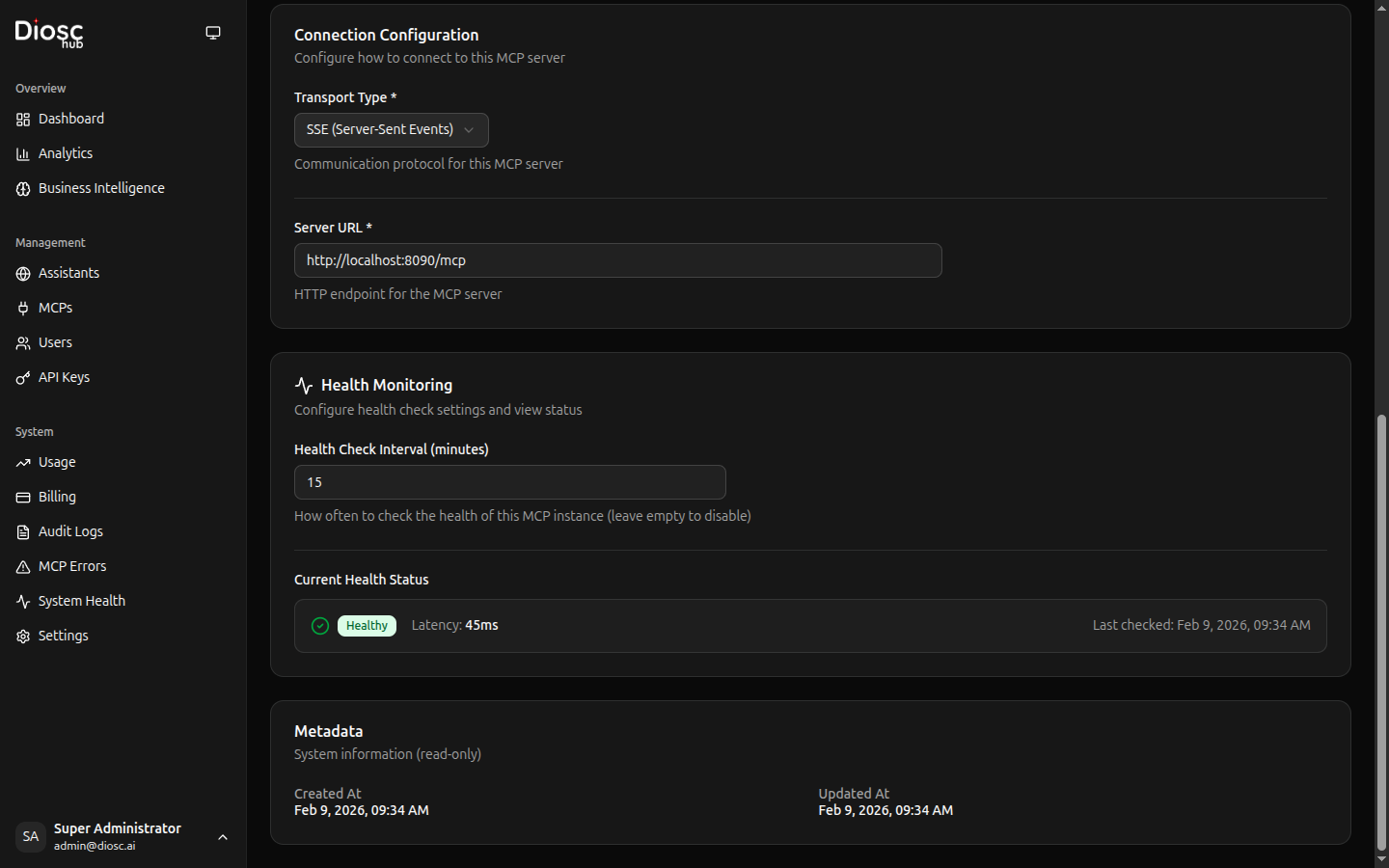
A successful test shows:
- Latency — Round-trip time in milliseconds
- Tool Count — Number of tools discovered on the server
Troubleshooting Connection Issues
| Error | Possible Cause | Solution |
|---|---|---|
| Connection refused | Server not running | Start the MCP server |
| Timeout | Network issue or slow server | Increase timeout, check firewall |
| SSL error | Invalid certificate | Use valid SSL cert or disable verification (dev only) |
| 401 Unauthorized | Missing/invalid API key | Check Authentication settings |
| No tools found | Server misconfigured | Check MCP server implementation |
Refreshing the Client
Click Reload from the actions dropdown to close and re-establish the connection to the MCP server. This is useful after the server has been restarted or reconfigured.
Health Monitoring
Diosc continuously monitors MCP server health and displays status badges on the server list.
| Status | Badge | Meaning |
|---|---|---|
| Healthy | Green | Server responding normally |
| Degraded | Yellow | Server slow or partial failures |
| Down | Red | Server not responding |
You can also view health status from Monitoring in the sidebar (see Monitoring), which shows system health and audit history.
Removing an MCP Server
To remove an MCP server:
- Click the delete action on the server in the list
- Confirm the deletion
Removing a server disconnects all active sessions using it and removes tool access from all assistants that reference it.
Best Practices
Naming Conventions
Use clear, descriptive instance names:
acme-helpdesk— Helpdesk systemorders-api— Orders servicecrm-integration— CRM system
Instance names are used as tool prefixes at runtime (e.g., acme-helpdesk__create_ticket), so keep them short and descriptive.
Security
- Use HTTPS for production servers
- Rotate API keys periodically
- Monitor health status for anomalies
Reliability
- Configure appropriate timeouts
- Check the Errors tab on each MCP instance for recurring issues
- Test connections after configuration changes
Next Steps
- MCP Configuration — Configure server settings, tools, and approval
- Building MCP Servers — Create your own MCP server
- Approval Policies — Require approval for sensitive tools
- Managing Assistants — Configure assistants to use MCP tools