Managing Knowledge Bases
Knowledge bases are collections of documents that your assistants can search and reference during conversations. Upload files like policy documents, product manuals, or FAQ sheets, and they become automatically searchable via RAG (Retrieval Augmented Generation).
Knowledge Base List
Navigate to Knowledge in the sidebar to see all knowledge bases.
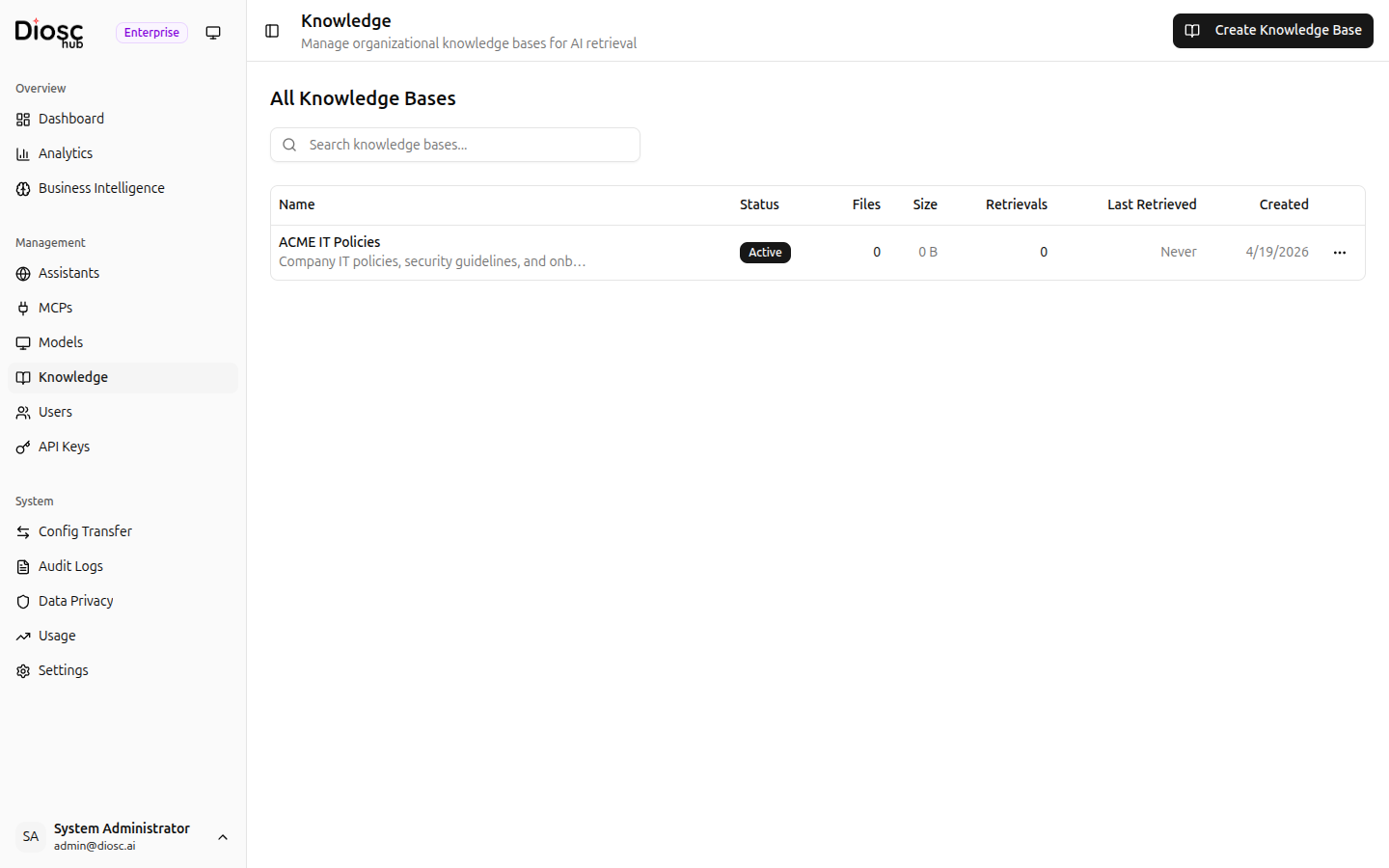
Each knowledge base shows:
- Name — Knowledge base name and description
- Status — Active or Inactive
- Files — Number of uploaded files
- Size — Total file size
- Retrievals — How many times the knowledge has been used in conversations
- Last Retrieved — When the knowledge was last used
- Created — When the knowledge base was created
From the list you can:
- Search for knowledge bases by name
- Create a new knowledge base
- Edit a knowledge base's name, description, or active status
- Delete a knowledge base and all its files
Creating a Knowledge Base
Click Create to set up a new knowledge base.
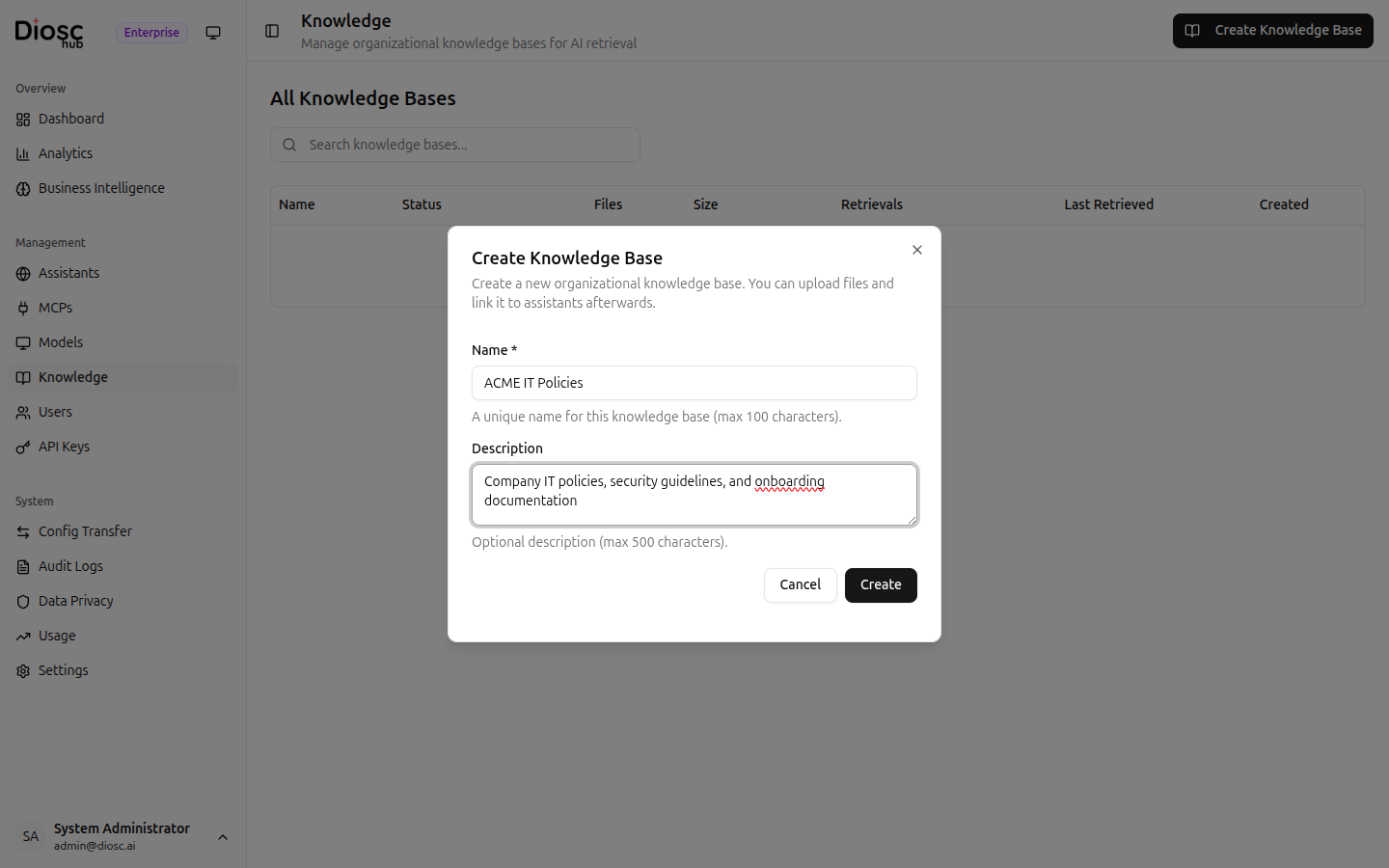
| Field | Description | Required |
|---|---|---|
| Name | A descriptive name (e.g., "Company Policies", "Product Docs") | Yes |
| Description | What this knowledge base contains | No |
After creation, the knowledge base is active but empty. Upload files to add content.
Uploading Files
Open a knowledge base and go to the Files section. Click Upload to add files.
Supported file types include:
- Documents — PDF, DOCX, TXT, MD
- Spreadsheets — CSV, XLSX
- Data — JSON
Each uploaded file shows:
- Filename — Original filename
- Type — MIME type
- Size — File size in bytes
- Status — Processing, Ready, or Error
- Indexed — Whether the file has been indexed for search
- Strategy — How the file is indexed (Chunked for large files, Direct for small files)
File Processing Pipeline
When a file is uploaded:
- Upload — File saved to storage, status set to
PROCESSING - Text Extraction — Document processor extracts text (supports PDF, Word, Excel, CSV, Markdown, plain text)
- Strategy Selection — Small files (under ~8KB of text) use the Direct strategy; larger files use the Chunked strategy
- Indexing — Chunked files are split into segments, each embedded as a vector for semantic search
- Ready — The file is searchable by assistants
Knowledge base files use an EAGER indexing policy — processing and indexing start immediately after upload.
Retrieval Strategies
| Strategy | When Used | How It Works |
|---|---|---|
| Direct | Small files (< ~8KB text) | Full text returned to the AI — no vector search needed |
| Chunked | Larger files | Text split into segments with vector embeddings; relevant chunks found via semantic search |
Both strategies are transparent to the assistant — it simply searches knowledge and gets relevant results.
Removing Files
Click Delete on any file to remove it from the knowledge base. This also deletes all indexed chunks for that file.
Linking to Assistants
Knowledge bases must be linked to at least one assistant or role to be used in conversations.
Navigate to an assistant's settings, then go to the Knowledge tab to manage links:
- Click Add Knowledge to see available knowledge bases
- Select a knowledge base to link it
- The assistant can now search this knowledge during conversations
You can also link knowledge bases to specific Roles, so different roles have access to different knowledge.
Link Resolution
At query time, Diosc resolves which knowledge files to include:
- All knowledge linked to the assistant is included
- If a role is active, knowledge linked to that role is also included
- Only active knowledge bases are included
- Only files in Ready status that are indexed are searchable
Link shared knowledge (e.g., company policies) to the assistant, and specialized knowledge (e.g., engineering runbooks) to specific roles.
Activating and Deactivating
Toggle a knowledge base's Active status to control whether it's included in assistant queries. Deactivating a knowledge base:
- Immediately excludes it from RAG search
- Does not delete any files or links
- Can be reactivated at any time
This is useful for temporarily removing knowledge without losing the configuration.
Deleting a Knowledge Base
To delete a knowledge base:
- Click the delete action on the knowledge base in the list
- Confirm the deletion
Deleting a knowledge base permanently removes all files, indexed chunks, and links to assistants/roles. This cannot be undone.
Knowledge API Reference
All knowledge endpoints require authentication and the knowledge:read or knowledge:write permission.
The number of knowledge bases you can create may be limited by your license tier.
| Method | Endpoint | Description |
|---|---|---|
POST | /admin/knowledge | Create a knowledge base |
GET | /admin/knowledge | List all knowledge bases |
GET | /admin/knowledge/:id | Get a single knowledge base |
PUT | /admin/knowledge/:id | Update name, description, or active status |
DELETE | /admin/knowledge/:id | Delete knowledge base and all files |
GET | /admin/knowledge/:id/files | List files in a knowledge base |
POST | /admin/knowledge/:id/files/upload | Upload a file (multipart) |
DELETE | /admin/knowledge/:id/files/:fileId | Remove a file |
GET | /admin/knowledge/:id/links | List knowledge links |
POST | /admin/knowledge/:id/links | Link to assistant or role |
DELETE | /admin/knowledge/:id/links/:linkId | Remove a link |
GET | /admin/knowledge/links-by-target | Reverse lookup: find knowledge linked to a target |
Example: Create and Link a Knowledge Base
# 1. Create knowledge base
curl -X POST http://localhost:3000/api/admin/knowledge \
  -H "Authorization: Bearer {token}" \
  -H "Content-Type: application/json" \
  -d '{"name": "Product FAQ", "description": "Frequently asked questions"}'

# 2. Upload a file
curl -X POST http://localhost:3000/api/admin/knowledge/{kbId}/files/upload \
  -H "Authorization: Bearer {token}" \
  -F "file=@faq.pdf"

# 3. Link to an assistant
curl -X POST http://localhost:3000/api/admin/knowledge/{kbId}/links \
  -H "Authorization: Bearer {token}" \
  -H "Content-Type: application/json" \
  -d '{"targetType": "assistant", "targetId": "{assistantId}"}'
Linking knowledge to a role requires the Pro tier or above (the roleKnowledgeAttachment feature).
Best Practices
Organization
- Create separate knowledge bases for distinct topics (e.g., "HR Policies", "Product Documentation", "Engineering Runbooks")
- Use clear, descriptive names — assistants include knowledge base names in their context
- Write descriptions to help administrators understand what each knowledge base contains
File Management
- Keep files up to date — stale information leads to incorrect AI responses
- Remove outdated files rather than adding corrected versions alongside them
Linking Strategy
- Link broadly-applicable knowledge to the assistant level
- Link role-specific knowledge to individual roles
- Review the Retrievals count to identify unused knowledge bases
Next Steps
- Roles — Configure role-specific knowledge access
- Users & API Keys — Create API keys for authentication